MAG and Stalker portals
MAG and Stalker portal player for Fire TV, Google TV and Android
Got a portal URL and a MAC address from your TV service? That’s a MAG portal, also called a MAC portal (after the MAC address), a Stalker portal or Stalker middleware. Showvee signs in to it like a MAG set-top box, so it works on a Fire TV Stick, Google TV, an Android TV box or an Android phone. Replacing a box? See Showvee as a MAG box app.
What you need from your provider
The portal URL
Often ending in /c/, such as http://portal.example.com/c/. Showvee also tries the usual portal paths at that address.
A registered MAC address
Twelve hex digits like 00:1A:79:12:34:56, registered with your provider for your subscription.
Add your portal in Showvee
-
Choose MAG / Stalker portal
The first time Showvee opens, it asks how to connect: choose MAG / Stalker portal. To add another later: Settings › Playlists › Add playlist › MAG / Stalker portal, shown here.
Rather type the portal URL and MAC address on your phone? Choose Use your phone instead and scan the code (how it works).

-
Enter the portal URL and MAC address
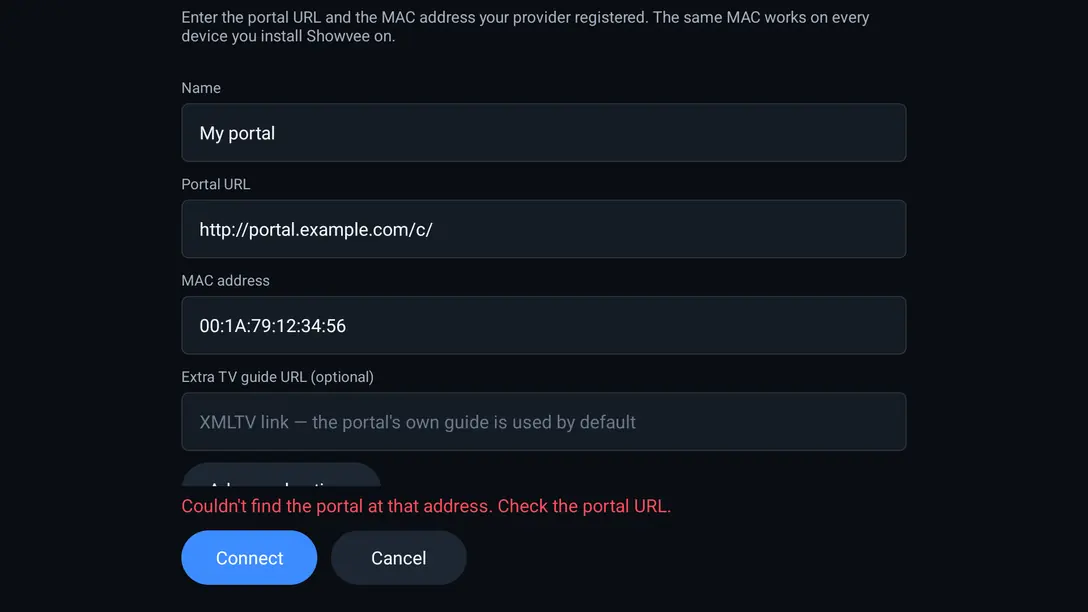
Type the Portal URL exactly as your provider gave it. The MAC address field already starts with
00:1A:79:, the prefix MAG boxes use: add the rest of yours.Leave Extra TV guide URL empty: the portal’s own guide is used.

-
Choose Connect
Showvee signs in to the portal and loads the channels, movies and series right there. If something is wrong, the form says so before you leave it: here, a portal URL that leads nowhere.
Once connected, choose Show everything, or Choose categories to hide groups you never watch.


About the MAC address
- It’s the one you type, not the device’s. Showvee sends the MAC address from the form, so the same one works on every device you install Showvee on.
- One device at a time. Most portals play one stream per MAC address. If a box or another app watches on the same MAC, channels stop or are refused here.
- Advanced options hold a serial number (made from the MAC when empty), device IDs, a signature and the box model (MAG250). Fill them in only if your provider gives you them.
- Several portals? Add each one. Switch between them on the home screen, or turn on Settings › Playlists › Choose a portal on start.
- Account details: Settings › Playlists › your portal › Account details shows the status and the expiry date.
TV guide (EPG)
Showvee uses the portal’s own guide. If it’s missing for some channels, add an XMLTV link in Extra TV guide URL: channels it covers use it, the rest keep the portal’s guide.
The guide grid is off until you switch it on in Settings › TV guide › Show the TV guide. Then it’s on the home screen, in the menu and on the remote’s Guide key. With it off, the channel list still shows what’s on now and next, because Showvee loads the guide data either way.

- Update TV guide now loads it again straight away. It also updates by itself.
- Keep past programmes (1 day at first) and Load programmes ahead (3 days) set how much of the guide Showvee keeps.
- Every programme off by the same number of hours? Check the device’s time zone and automatic time first. If they’re right, the provider’s guide has the wrong offset: tell your provider.
- A channel with no guide isn’t in your provider’s guide, or its name or ID there doesn’t match the channel.
Catch-up
Catch-up plays programmes your provider recorded. Channels the portal records (its “TV archive”) get it by themselves, for as many days as the provider keeps.
- Channels with catch-up show CATCH-UP on the banner when you switch to them.
- On the channel, hold OK (or press Menu) and choose Catch-up to pick a past programme, or Start over to watch the programme on now from its start. On a phone, press and hold the channel.
- With the guide grid on, you can also select a past programme there and choose Play from catch-up.
Catch-up lists past programmes from the guide, so a channel needs guide data for it. The guide grid itself can stay off.
Common errors and fixes
Showvee shows these on the form when you choose Connect, under the playlist in Settings › Playlists after an update, or over the picture.
“Couldn’t find the portal at that address. Check the portal URL.”
Showvee tried the usual portal paths at that address and found none. Copy the portal URL exactly as given, including http://, the port and any path.
“The portal rejected this MAC address.”
The provider hasn’t registered this MAC address, or registered a different one. Check it character by character, and ask your provider which MAC is on your subscription.
“Portal authorization failed.”
The portal stopped accepting this device’s sign-in. Often the same MAC address just signed in on another device, or the subscription ended. Wait a minute and update the playlist again. If your provider gave you a serial number, device ID or signature, enter them under Advanced options.
“The portal returned no channels.”
The portal accepts the MAC address but lists nothing. Ask your provider what your subscription includes.
“Could not reach the portal (…)”
Showvee couldn’t connect to the portal. Check the address and port, test the device’s internet, and try again later.
“The provider refused this stream (subscription, connection limit or region)”
Most often another device is watching on the same subscription (for a portal: on the same MAC address), and many allow only one stream at a time. It can also mean the subscription ended, or the provider blocks your region or network.
“Protected (DRM) streams are not supported”
The channel is protected with DRM, which Showvee can’t play.
“The TV guide is off. Turn it on in Settings › TV guide”
You pressed the Guide key while the guide grid is off. It’s off by default: switch it on as shown above.
“TV guide: No guide data found. Is this an XMLTV file?”
The guide address doesn’t lead to an XMLTV guide. Check it, or leave the field empty to use your provider’s own guide.
Buffering, sound or a channel that won’t play? See Help.
Install Showvee
Showvee runs on Fire TV, Google TV, Android TV boxes and Android phones and tablets. Each video guide takes about five minutes.
iPhone, iPad and Apple TV aren’t supported, and neither are Roku, Samsung and LG TVs: Showvee is an Android app. Reading this on an iPhone? That’s fine — just follow the steps on your TV. Which devices work?
Other ways to connect
Showvee is a player only. It comes with no channels, playlists or logins: use it with a service you already subscribe to, and only for content you have the right to watch.